-
Products
 All-4-in-One: Makerble® MissionKit™ The one-stop-shop to manage and report participant engagement across your programmes and services
 Communications: Makerble® CRM Centralise everything you need to know about everyone you influence. Collaborate securely, communicate effectively.
 Activities: Makerble® Scheduling Coordinate one-off and repeating events: take bookings, track attendance, collect feedback and measure impact
 Insights: Makerble® Surveys Collect responses using trackable, anonymised or universal survey links that connect and compare before and after responses automatically
 Reporting: Makerble® Impact Track, share and analyse progress towards everything that matters - effortless reporting, impressive results
 -
Solutions
Case Management & Service Delivery Deliver support with structure, care and accountability for every individual and group you serveCommunity Engagement & Behaviour Change Understand and improve the experience of every stakeholder you serve - from customers to communitiesEducation, Learning & Training Support and evaluate high-quality learning experiences - from classrooms to coaching programmesFunding & Commissioning Manage grants and contracts with clarity, transparency and outcomes in mindImpact Reporting & Evaluation Measure what matters - use insight to drive smarter decisions and report better outcomesPeople, Culture & Inclusion Build an inclusive, empowered culture and track the change as you goResearch, Strategy, Customer Insight Fuel strategic thinking and stay ahead with benchmarking, progress monitoring, research and innovation tools
-
Resources
- Pricing
- Try for free
- Sign In


 Interval Versions





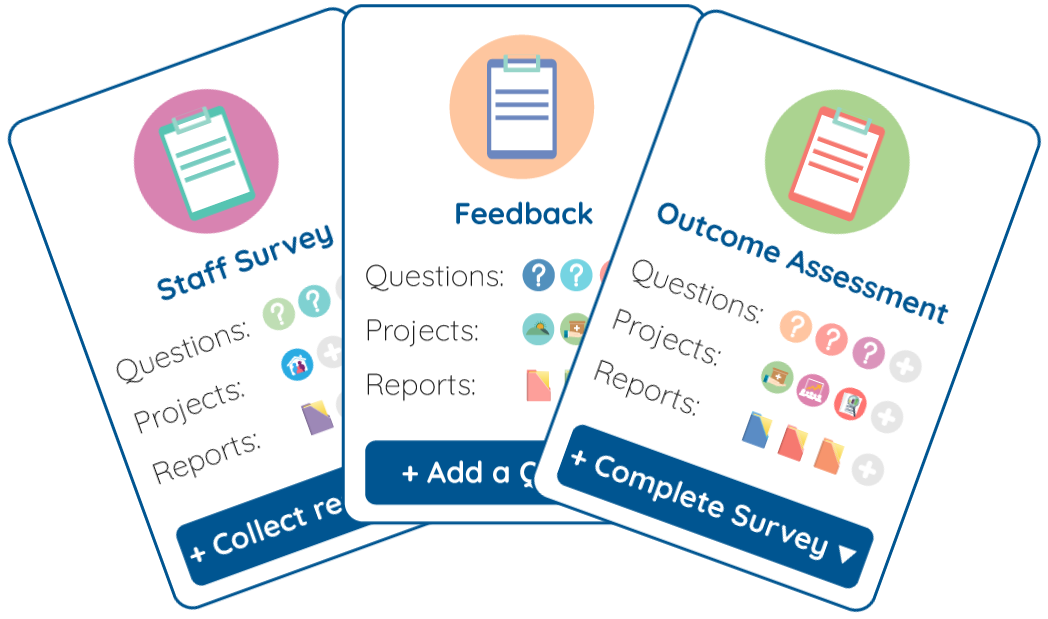

 360°
360°

 Universal

 Tracked


 Import

 API
API

 Type Up: Several at once

 Type Up: Manual Headcount

 Universal Manual Headcount

 Multi-stage

 Branded Portal

 Automation